- EaseUS Freeware
- Free Data Recovery Software
- Free Backup Software
- Free Partition Manager
Updated on 2025-03-31
For some users especially enterprise users, it is very tedious and time-consuming to repeatedly install and activate EaseUS Todo PCTrans on hundreds even thousands computers. In response to such needs, we started to provide MSI installation package for our enterprise users , with which the users will be able to achieve batch deployment on multiple PCs.
Method 1: Distribute MSI installation package with Windows Group Policy
*Windows AD domain is required, and all the following operations will be done in the domain control server.
1. Download the MSI installation package in Todo PCTrans Technician version:
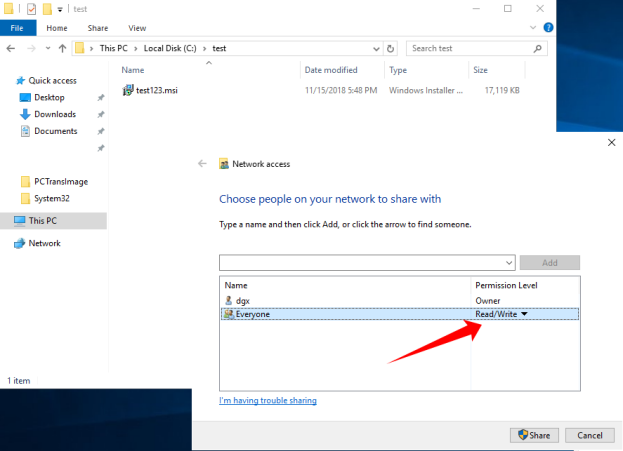
2. Share the folder including the MSI package and give “Everyone” read/write permission in Windows explorer.
3. Open Server Manager Dashboard→Group Policy Management

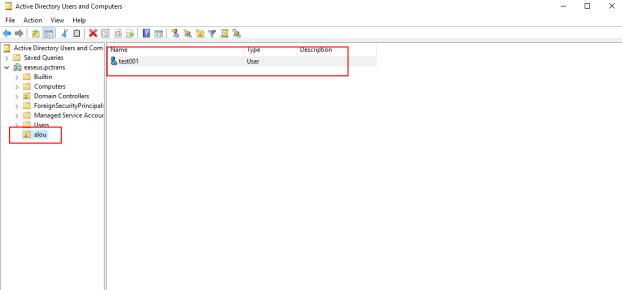
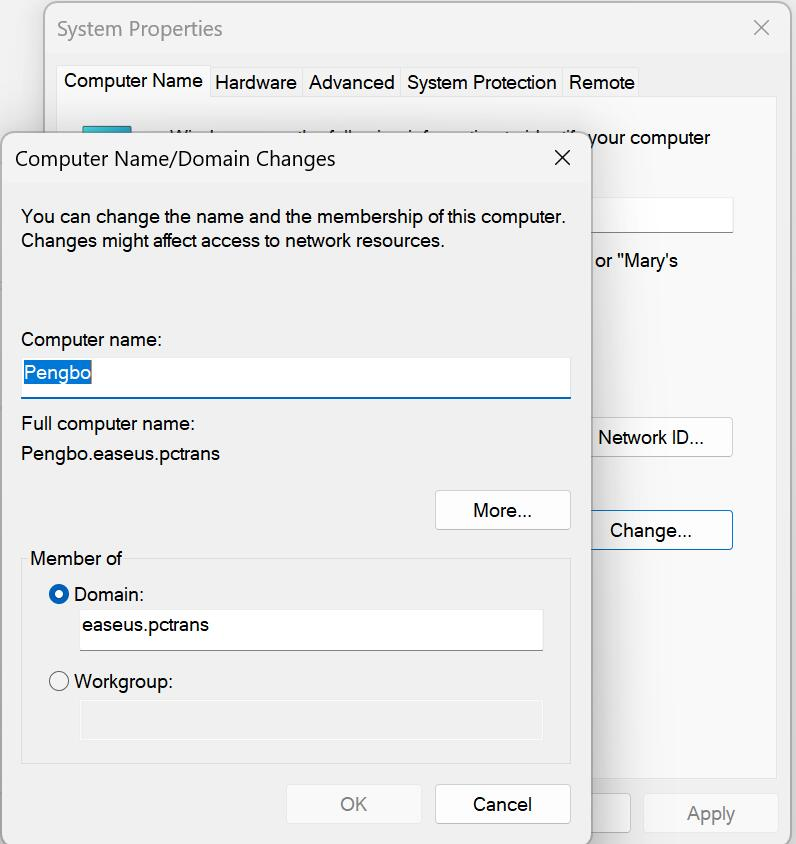
4. Create OU(alou) and new user(test001) and then add the client into the domain.
5. Back to Server Manager Dashboard→Group Policy Management, right click to create a new GPO.
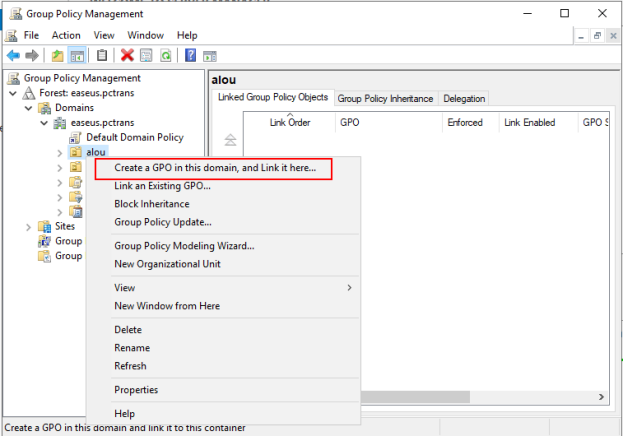
6. Name it software policy.
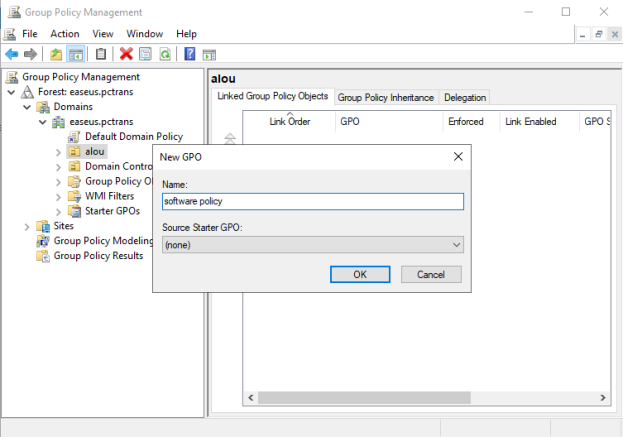
7. Right click on software policy and select Edit
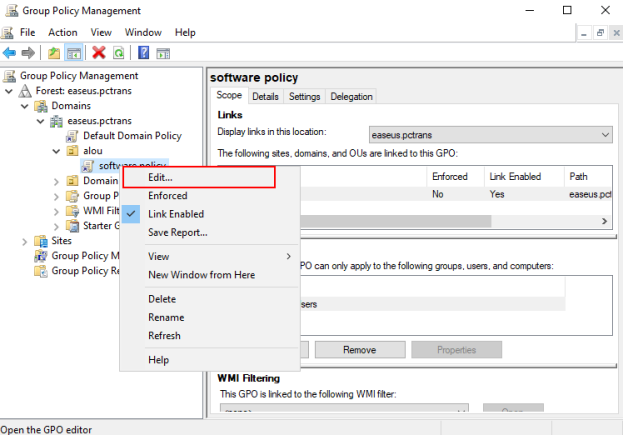
8. Select User Configuration→Software Installation→Right Click→Properties

9. Select the default location(The folder you shared at the 2nd step)→Advanced→Maximum and apply.

10. Right click on Software installation→New→Package and select the MSI package from the shared folder.

11. Click the "Deployment" button on the menu bar, select "Install this application at logon”and save it.

Here you can see the MSI package that is ready for the deployment.

12. Click "security", select Everyone and give it read permission

13. Force refresh group policy:Input gpupdate /force in command line.
14. Log on client PC with the account test001 created in step 4 and wait for a while here and it will automatically finish the software installation.
1) Install a batch deployment tool. Here we recommend Ansible or Puppet.
2) Copy the command line from the activated PCTrans Technician software and execute it in your batch deployment tool.

Need Expert Assistance?
If you need more professional assistance, EaseUS 1 on 1 Remote Assistance Service provides to schedule a remote desktop session with dedicated support engineer to help you take care of the cases such as Operating System Migration, Backup Task Customization, Windows Boot Error Fixing, Data Recovery and more. Click HERE to learn more about this service.
Access Live Chat Call Us: 1-800-992-8995
If you need more professional assistance, EaseUS 1 on 1 Remote Assistance Service provides to schedule a remote desktop session with dedicated support engineer to help you take care of the cases such as Operating System Migration, Backup Task Customization, Windows Boot Error Fixing, Data Recovery and more. Click HERE to learn more about this service.
Access Live Chat Call Us: 1-800-992-8995