- EaseUS Freeware
- Free Data Recovery Software
- Free Backup Software
- Free Partition Manager
Updated on 2018-10-07
This article applies to:
All series of EaseUS Products for Windows
Why Windows Flags EaseUS Download Files
EaseUS Test Department found that many ".exe" files were reported to be corrupted or invalid by default after the latest update of Windows 10. The ".exe" download files of EaseUS Products for Windows are not the exception. Currently the developers are working hard on it and hope it will be fixed soon. Here we have a transitional solution to steer you in the right direction.
Error
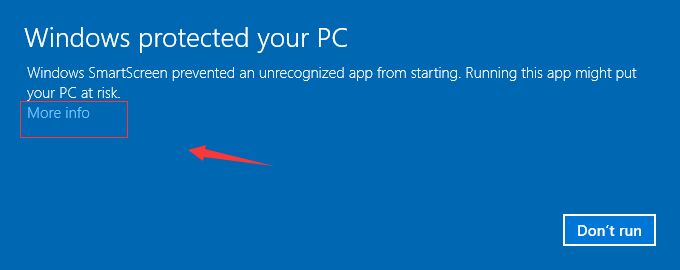
If you had got this error and you were warned to have "Don't Run" by Windows in the middle of downloading EaseUS Products for Windows, please go to the solution below. Rest assured that EaseUS Products are absolutely virus-free.

Solution
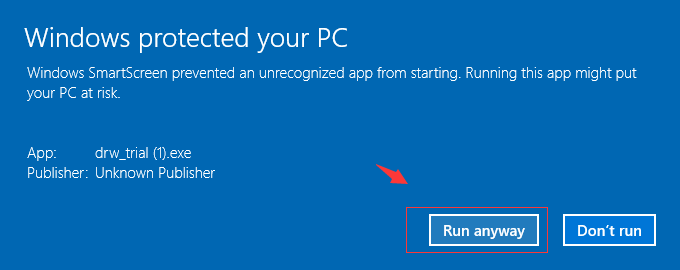
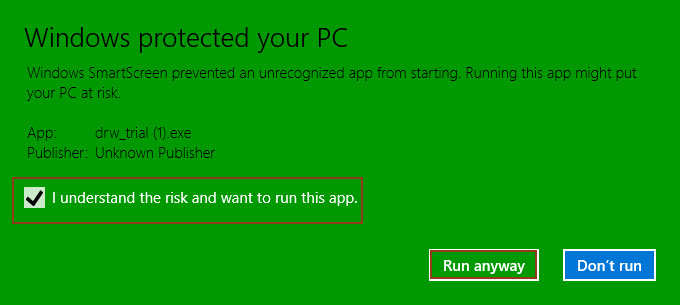
Please open the file folder to locate the ".exe" installation file. Double click it to proceed with installation. When you were warned to have "Don't Run" by Windows, please tick "I understand the risk and want to run the app" and choose "Run Anyway". Then you will be able to complete the installation without any issue.
Here is the guidance for how to locate the ".exe" installation file in the top 3 browsers:
Edge(or IE)
1. Click "View downloads" or Click the third icon at the right top of the page:

2. Click "Open folder" to locate the ".exe" installation file.

3. Double click ".exe" installation file to proceed with installation.
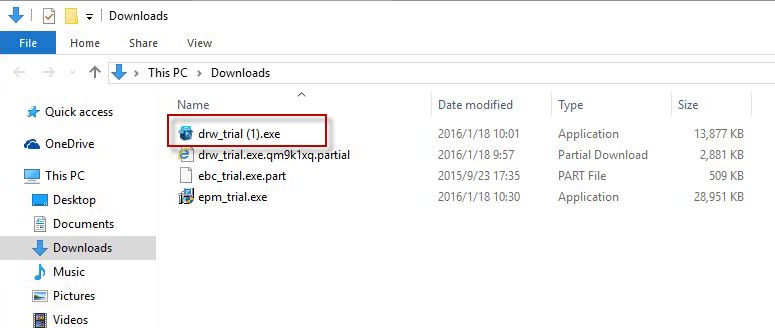
4. Click "More Info" or tick "I understand the risk and want to run the app" and choose "Run Anyway". Then the installation will be completed smoothly.
Google Chrome
1. Click the last icon at the right top of the page and select "Downloads".
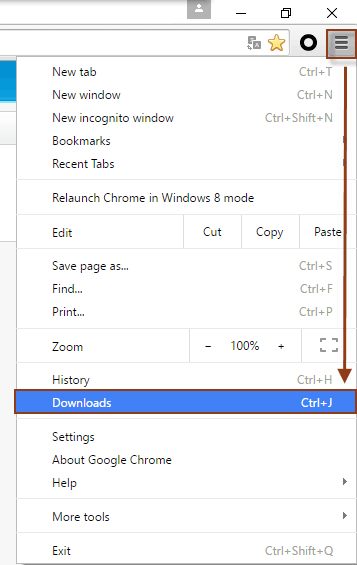
2. Click "Open downloads folder" to locate the ".exe" installation file.

3. Double click it to proceed with installation.
4. Click "More Info" or tick "I understand the risk and want to run the app" and choose "Run Anyway". Then the installation will be completed smoothly.
Firefox
1. Click the fourth icon at the right top of the page and select "Downloads" to directly locate the ".exe" installation file.
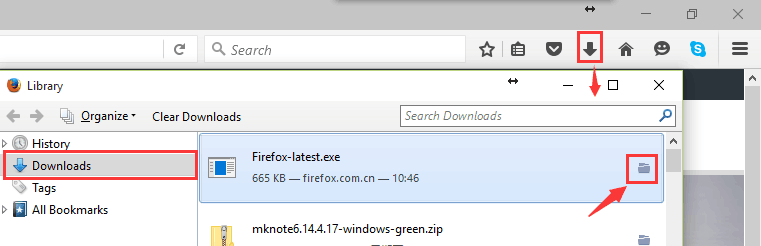
2. Double click it to proceed with installation.
3. Click "More Info" or tick "I understand the risk and want to run the app"and choose "Run Anyway". Then the installation will be completed smoothly.