- EaseUS Freeware
- Free Data Recovery Software
- Free Backup Software
- Free Partition Manager
Updated on 2026-09-07
Applies to:
EaseUS Data Recovery Wizard

Overview
This article explains how to repair corrupted videos, photos, and documents using EaseUS Data Recovery Wizard on a Windows
based computer.1. Launch EaseUS Data Recovery Wizard on your computer. Locate File Repair in the left hand navigation pane of the program.
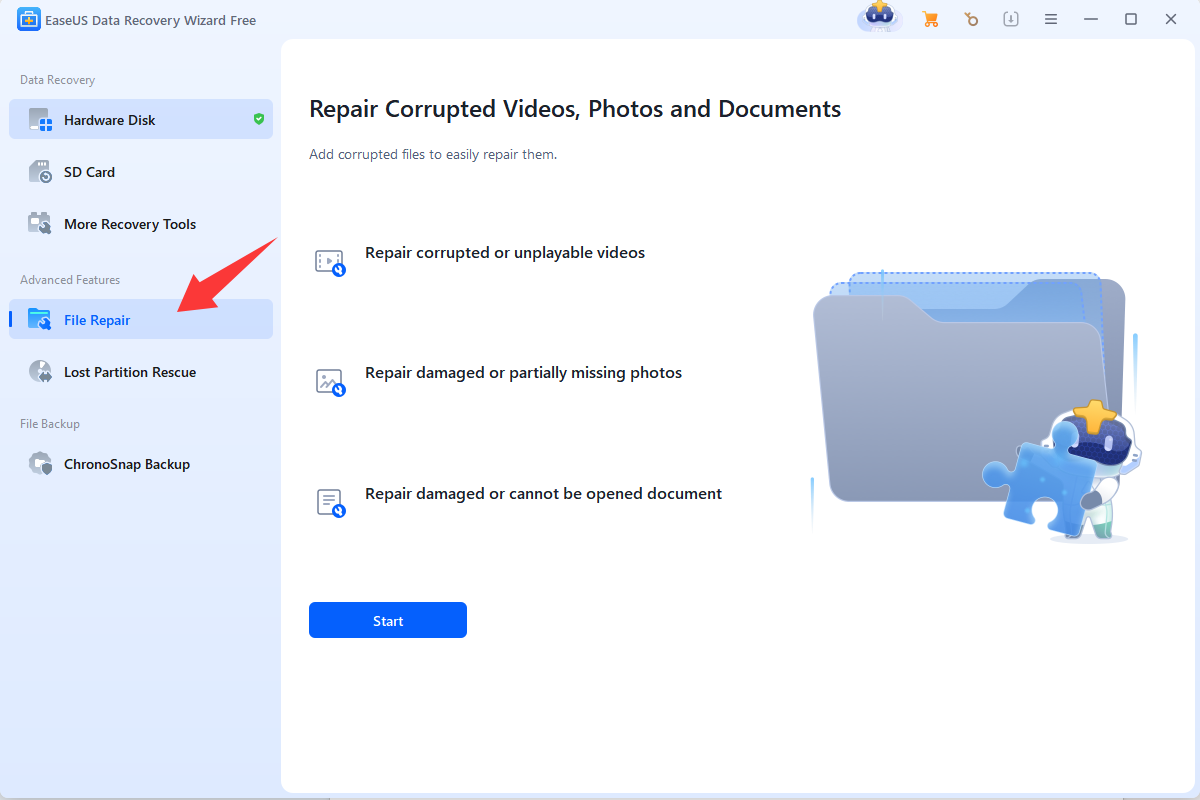
2. Click Start, then import your corrupted files into the program. Next, click Repair All to begin the quick repair process.
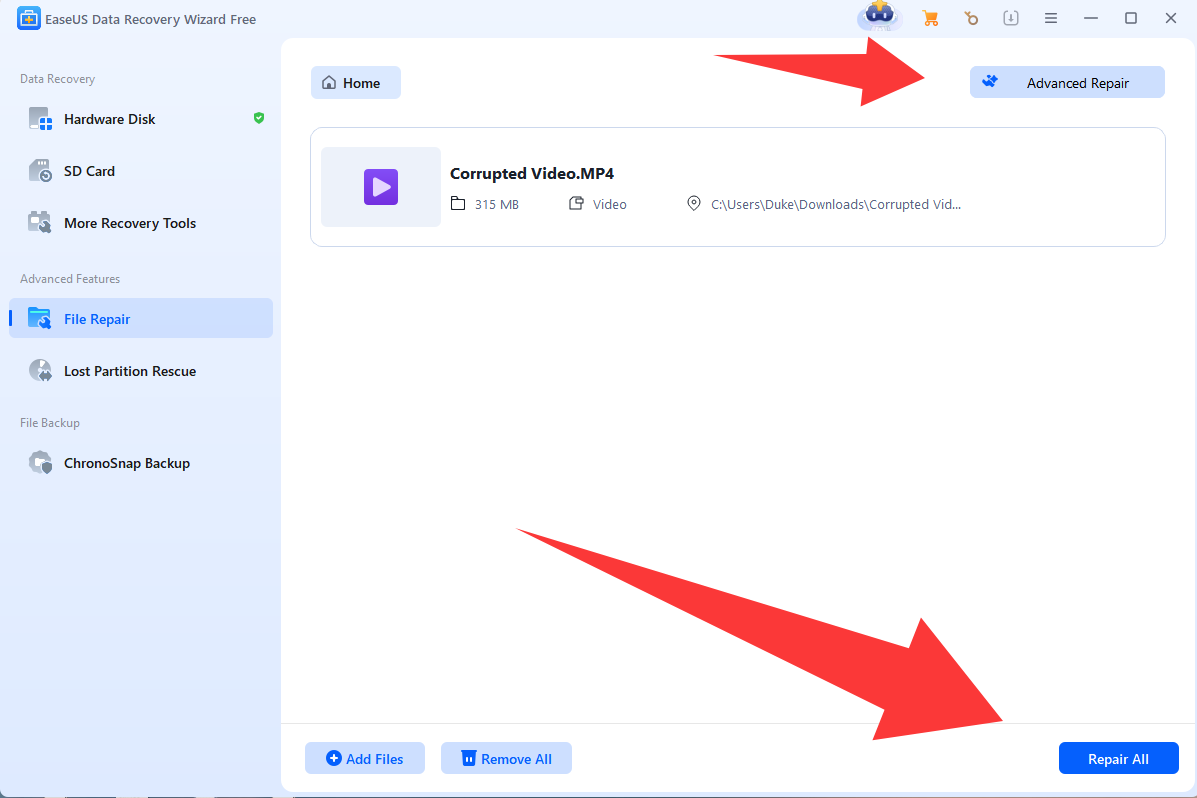
3. If the quick repair fails, click Advanced Repair at the top right corner. You will be directed to the professional repair tool EaseUS Fixo, where you can complete corrupted file repair by providing a sample file.
Should you have any further questions, please reach out to EaseUS Support via the LiveChat.